Milestone VMS Configuration
Overview
This comprehensive guide covers Milestone XProtect VMS integration with GCXONE, including basic configuration and advanced alarm management with I/O triggers.
What you'll accomplish:
- Configure Milestone XProtect for GCXONE integration
- Enable and configure Mobile Server for cloud access
- Set up user permissions and network settings
- Configure advanced alarm management with I/O triggers
- Add Milestone to GCXONE platform
- Configure cameras, events, and PTZ
- Verify all integration features
Estimated time: 60-90 minutes
Prerequisites
- Milestone XProtect (2020 R1 or higher) installed
- Administrative access to Milestone Management Client
- Network connectivity to GCXONE platform
- GCXONE account with device permissions
- Cameras configured and recording in Milestone
- Static IP or DDNS for Milestone server
Configuration Workflow
- Basic Configuration - Configure Milestone server, Mobile Server, users, and network (Steps 1-6)
- Advanced Alarm Configuration - Set up I/O triggers, alarm definitions, and rules (Steps 7-11, optional)
- GCXONE Integration - Add Milestone to GCXONE and configure integration (Steps 12-15)
- Verification - Test all features
Part 1: Basic Milestone Configuration
Step 1: Access Milestone Management Client
Objective: Access Milestone Management Client to begin configuration.
- Launch Milestone Management Client on Windows server
- Log in with administrator credentials
- Verify XProtect version is 2020 R1 or higher
- Check system status for any errors
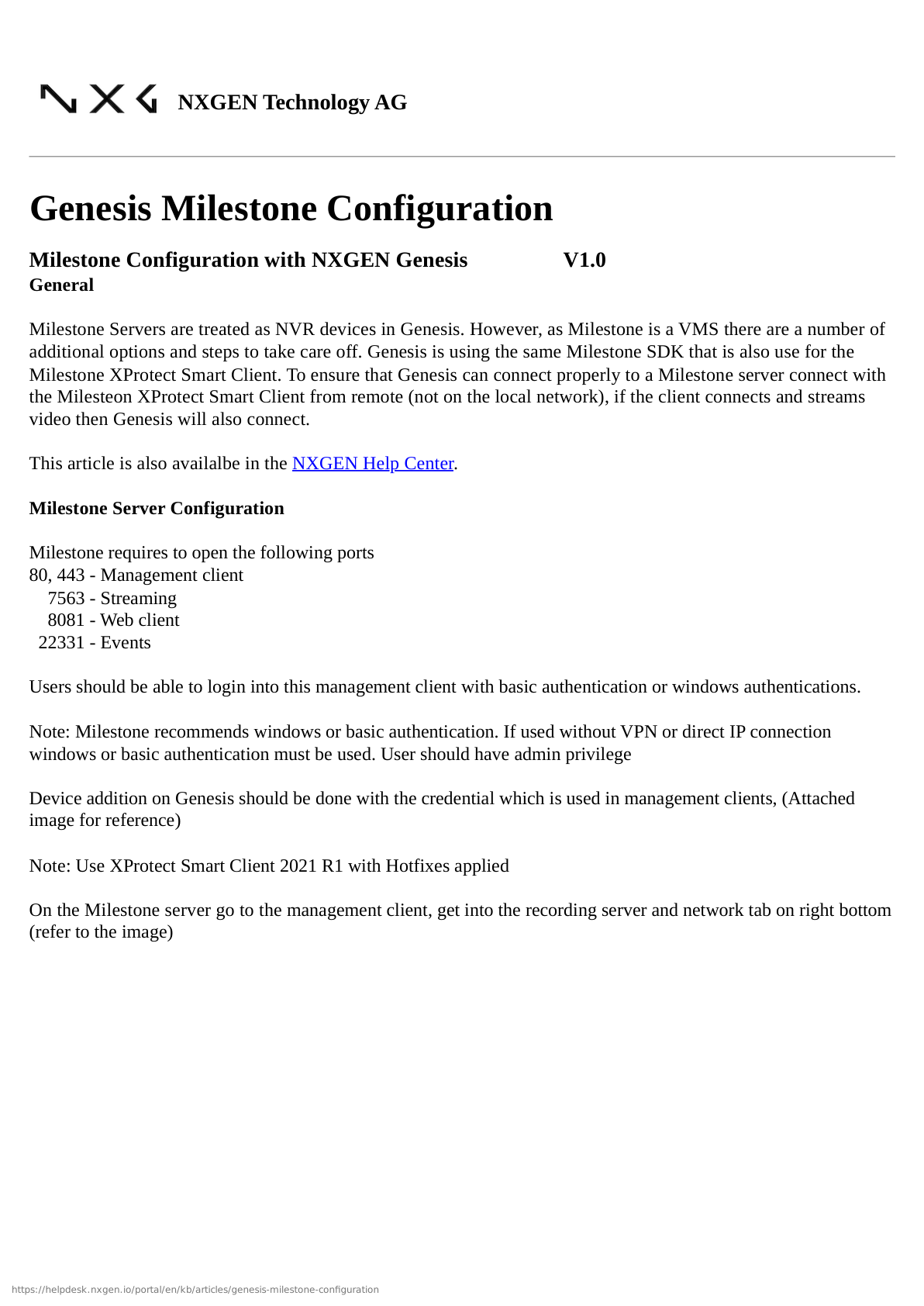
Expected Result: Successfully logged into Management Client.
Step 2: Enable and Configure Mobile Server
Objective: Enable Mobile Server for GCXONE cloud integration.
- In Management Client, navigate to Servers → Mobile Server
- Click Enable Mobile Server
- Configure Mobile Server settings:
- Port: 8081 (default) or custom
- Enable HTTPS: ✓ Recommended
- Authentication: Windows or Basic
- Click Apply and Start Mobile Server
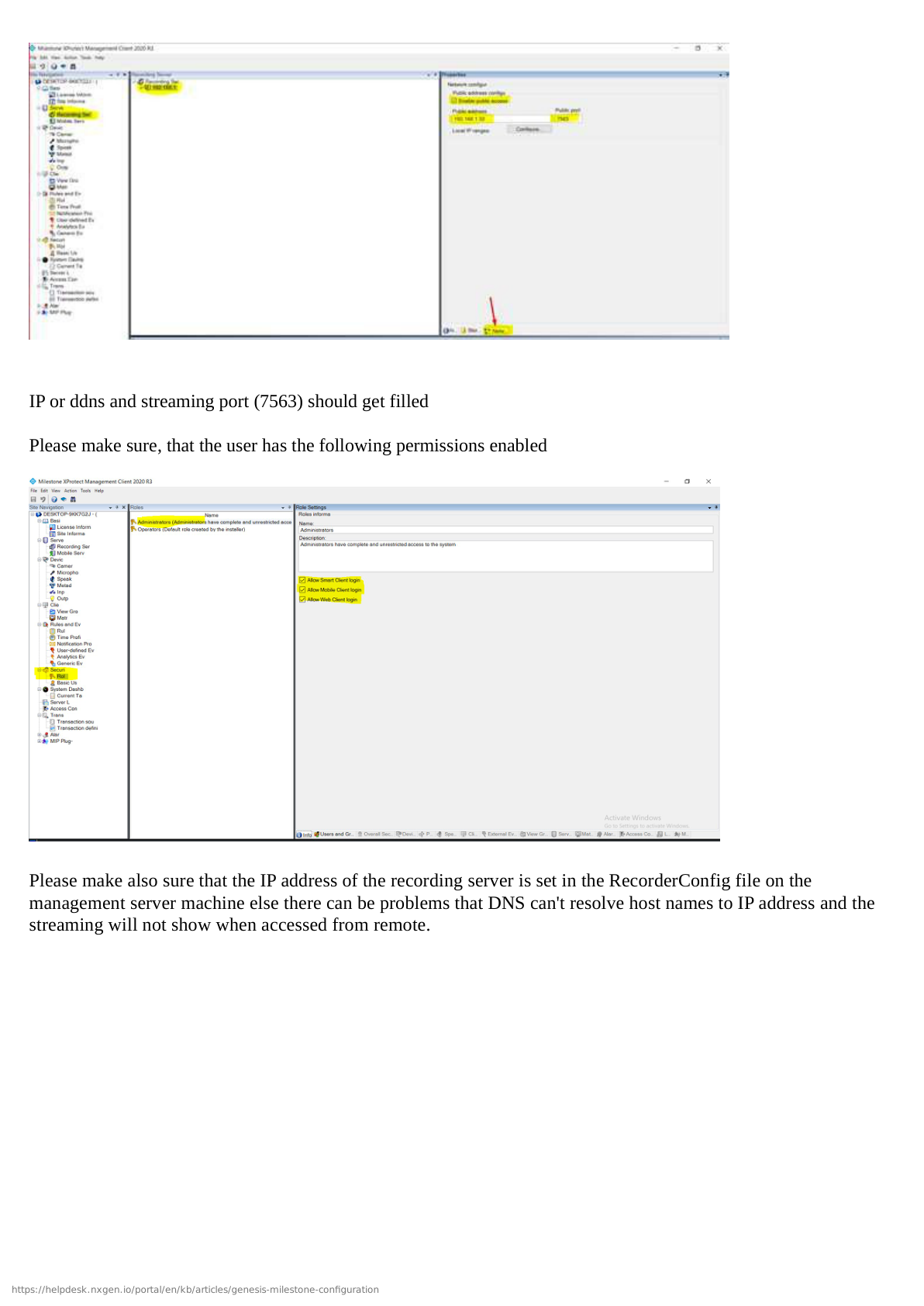
Expected Result: Mobile Server running and accessible.
Step 3: Configure Network Settings
Objective: Configure network for cloud access.
- Navigate to Tools → Options → Network
- Verify server IP and network settings
- Configure firewall for ports 8081, 443, 554
- Test external connectivity
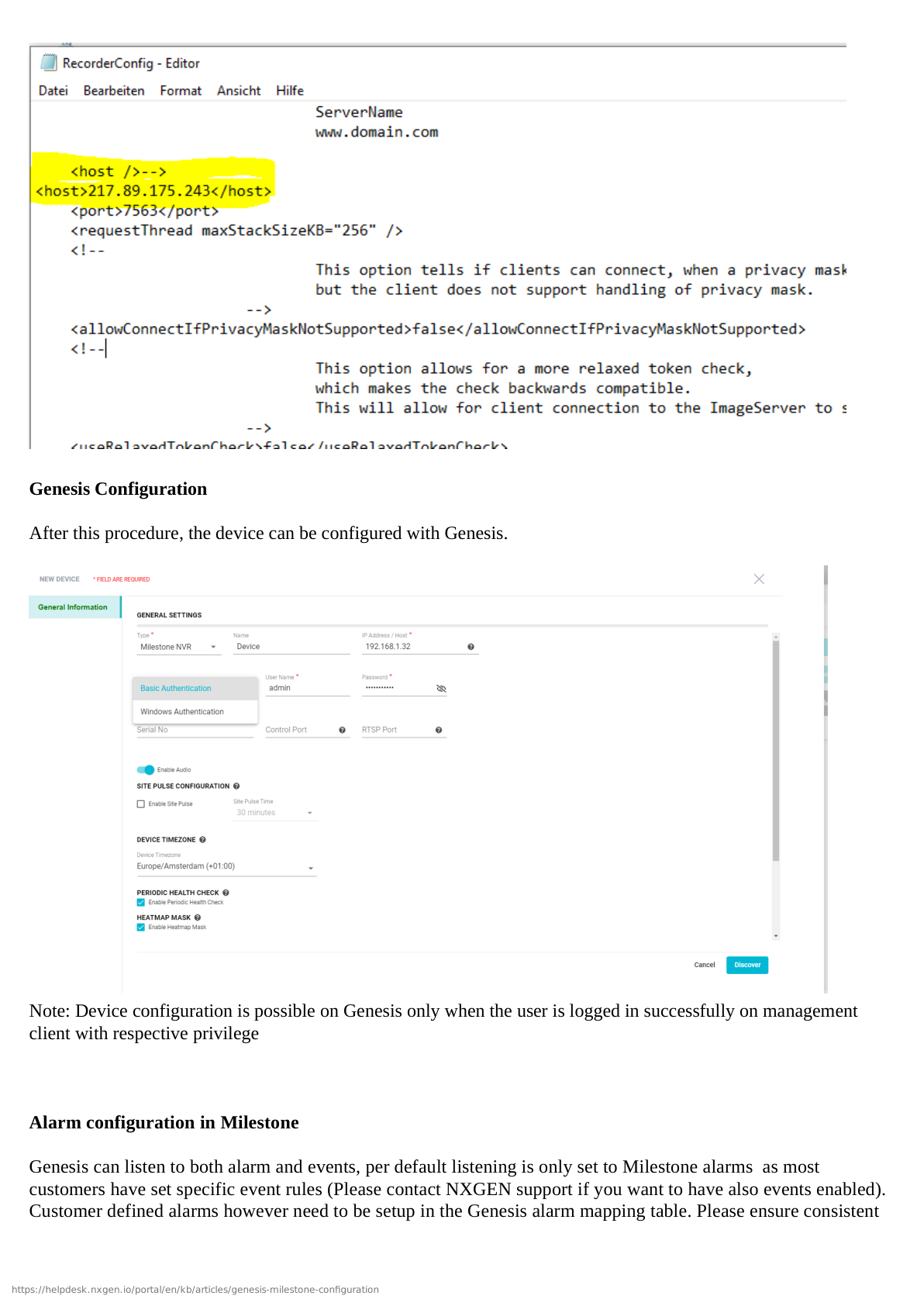
Expected Result: Network configured, Mobile Server accessible.
Step 4: Create Integration User
Objective: Create dedicated user for GCXONE.
- Navigate to Security → Users
- Click Add User
- Configure:
- Username:
gcxone_integration - Password: Strong password
- Role: Administrator or custom with full permissions
- Username:
- Enable mobile access, playback, PTZ, events
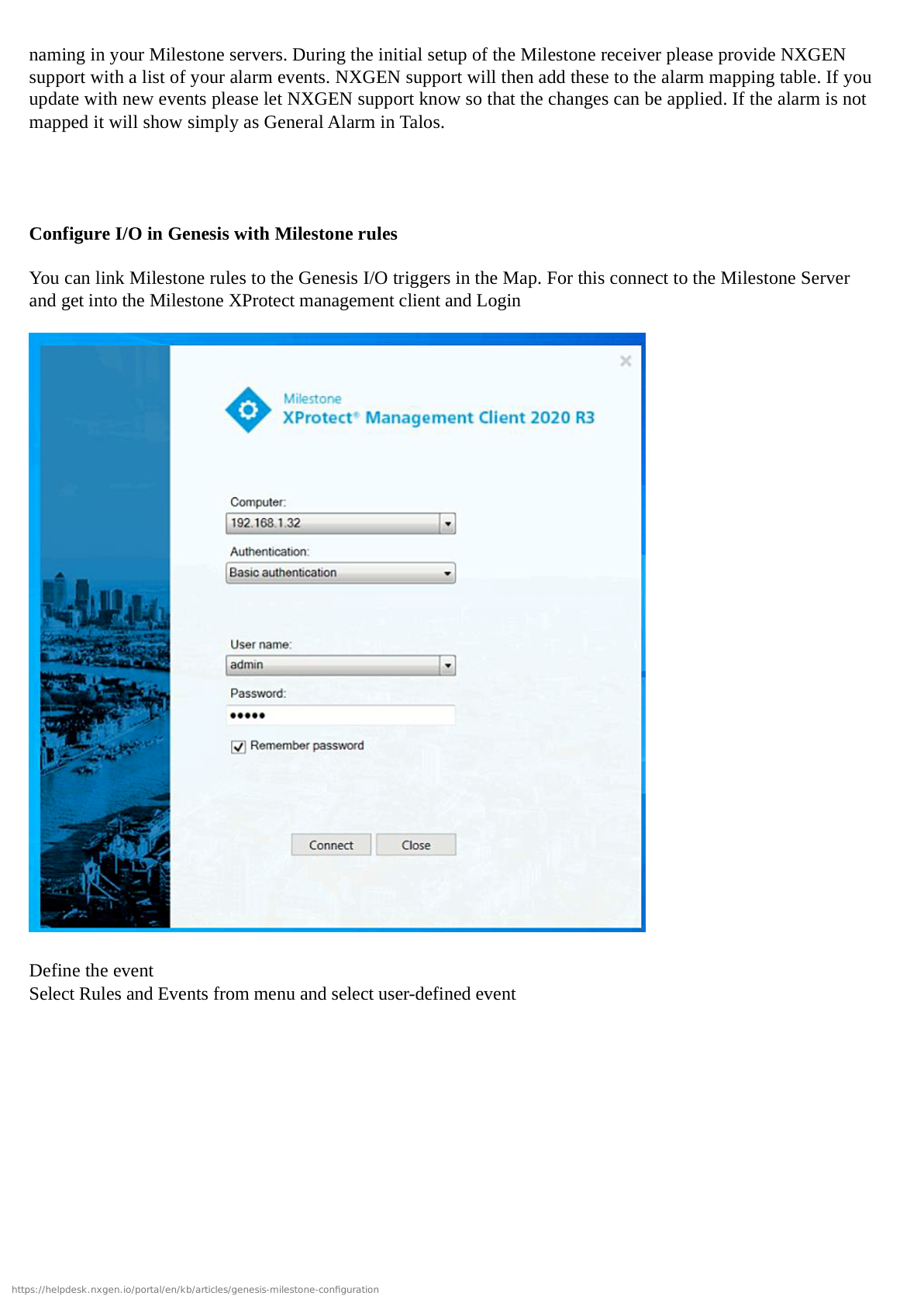
Expected Result: Integration user created.
Step 5: Configure Cameras
Objective: Verify camera configuration.
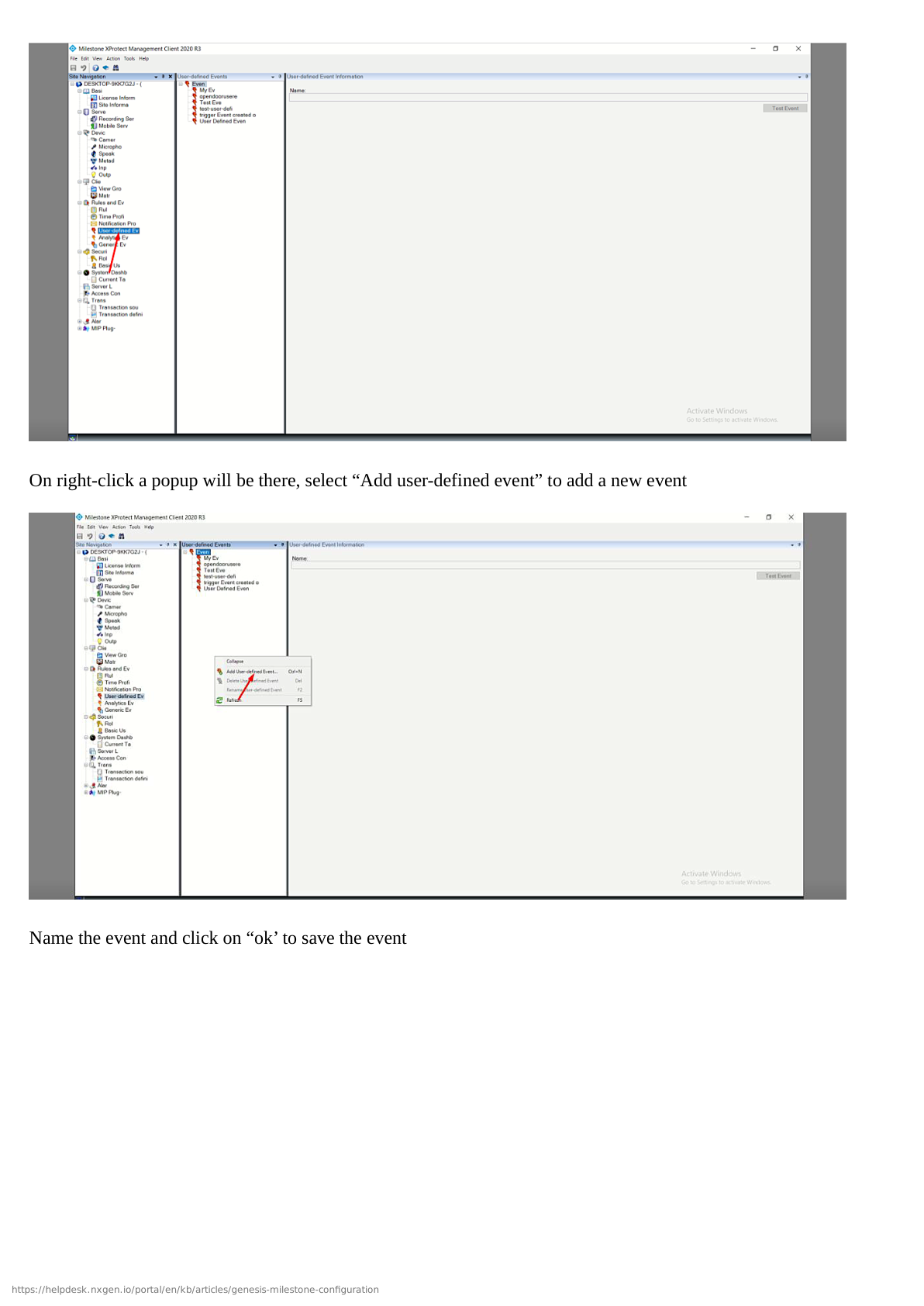
- Navigate to Devices → Cameras
- For each camera verify:
- Enabled and recording
- Streams configured
- Motion detection enabled
- PTZ settings (if applicable)
Expected Result: All cameras configured and streaming.
Step 6: Configure Recording Storage
Objective: Verify storage settings.
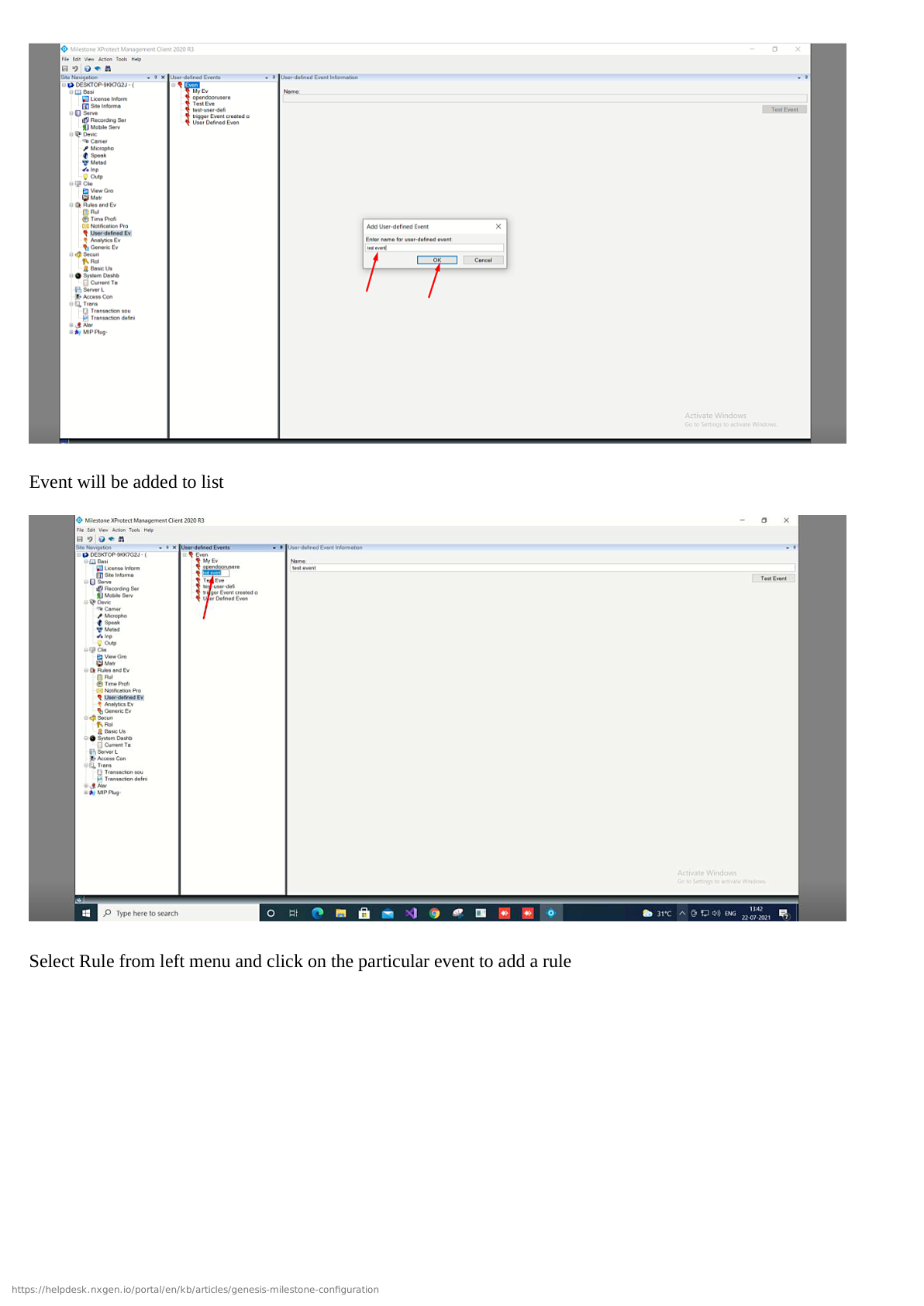
- Navigate to Recording → Storage
- Verify:
- Available disk space
- Retention period (7-30 days)
- Recording schedules
Expected Result: Storage configured with retention.
Part 2: Advanced Alarm Configuration (Optional)
Step 7: Configure I/O Hardware
Objective: Set up I/O devices for alarms.
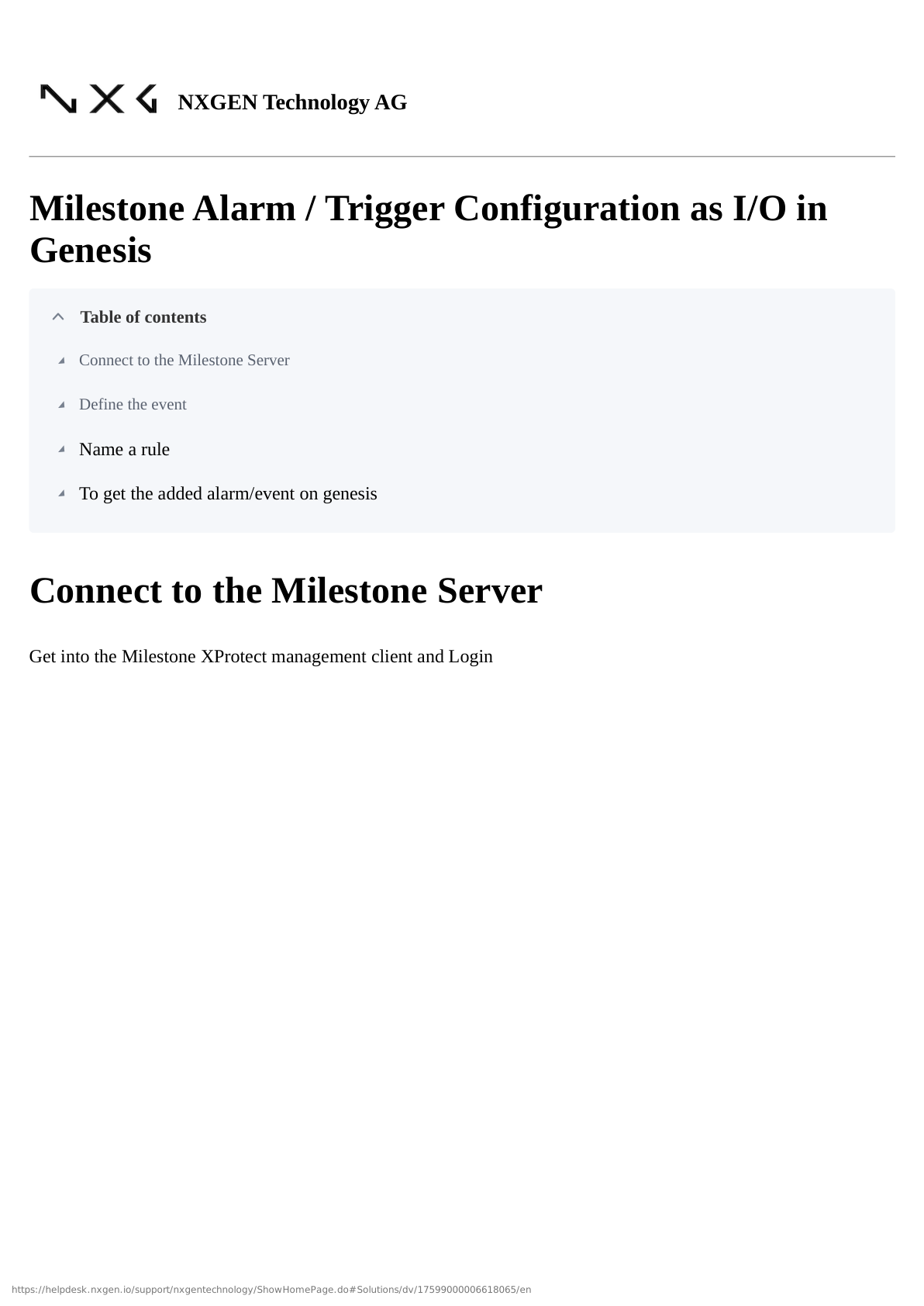
- Navigate to Devices → Input/Output
- Add I/O hardware devices
- Configure inputs (e.g., "Door Contact")
- Configure outputs for alarm responses
Expected Result: I/O hardware configured.
Step 8: Create Alarm Definitions
Objective: Define alarms for events.
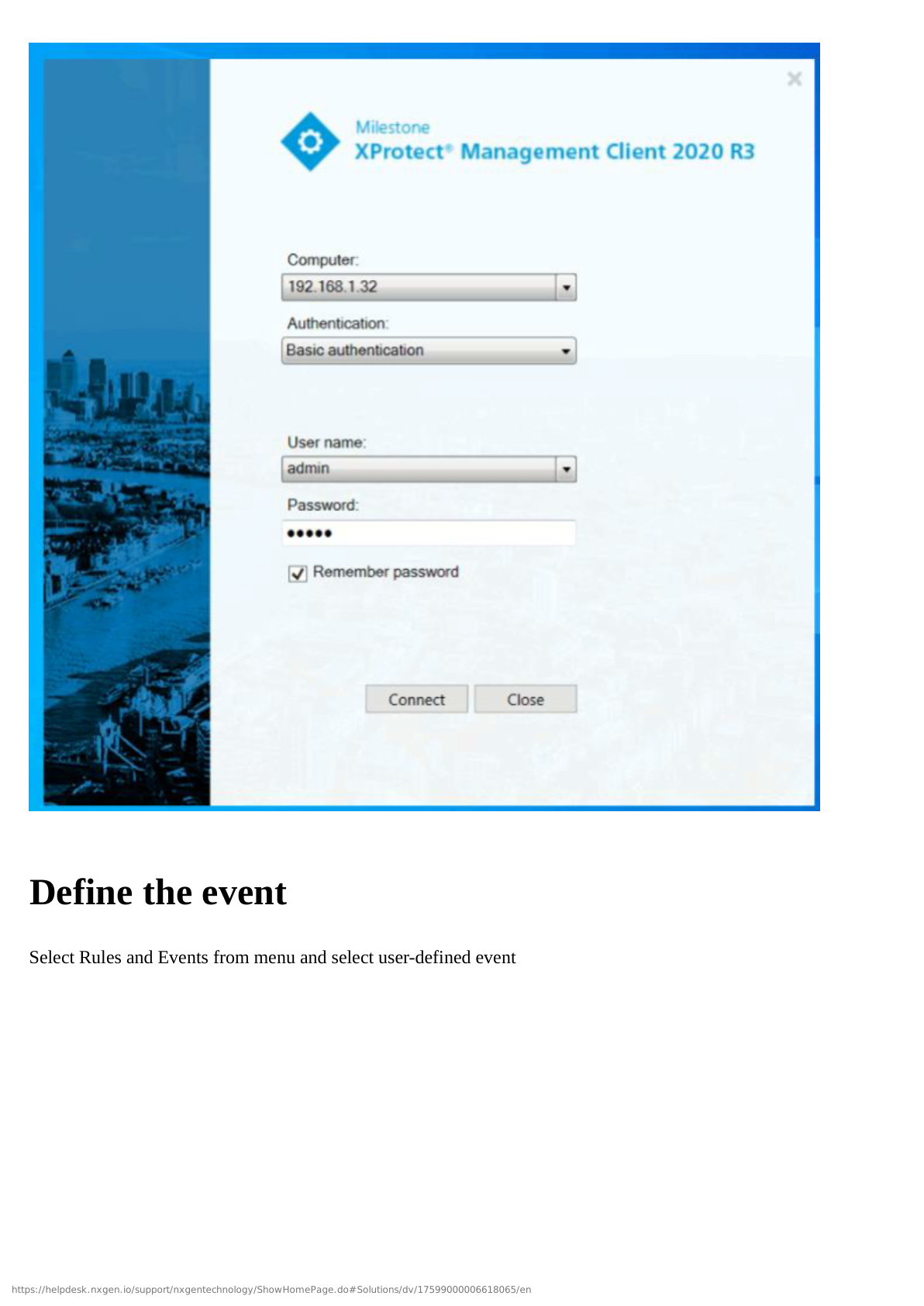
- Navigate to Alarms → Alarm Definitions
- Click Add Alarm Definition
- Configure name, priority, category
- Enable alarm
Expected Result: Alarm definitions created.
Step 9: Configure Alarm Triggers
Objective: Set up alarm triggers.
- In Alarm Definition → Trigger tab
- Add trigger source (I/O input, analytics)
- Configure conditions and schedule
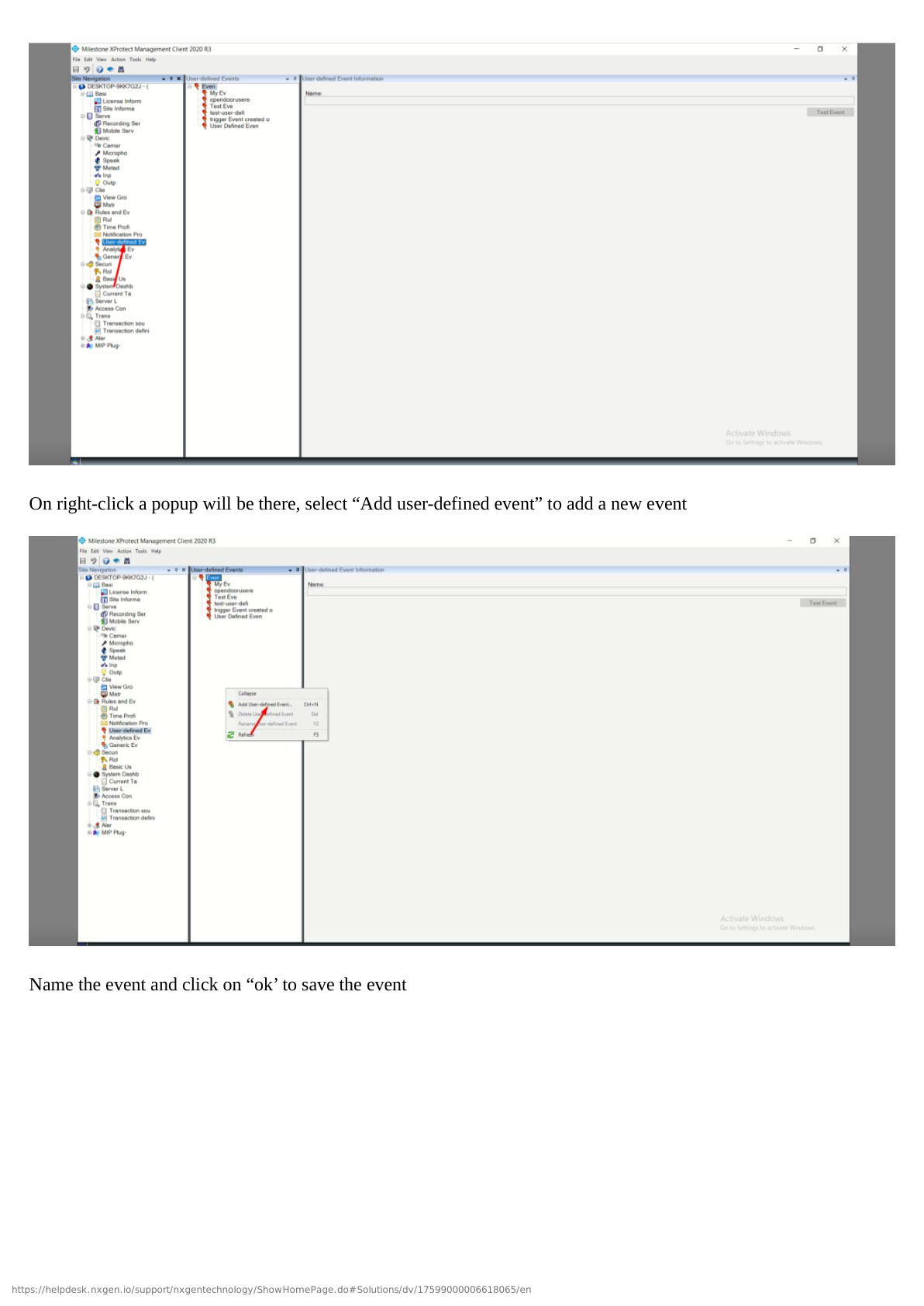
Expected Result: Alarms trigger on events.
Step 10: Configure Alarm Actions
Objective: Define alarm actions.
- In Alarm Definition → Actions tab
- Add actions:
- Record video
- Trigger outputs
- Send notifications
- Configure delays and durations
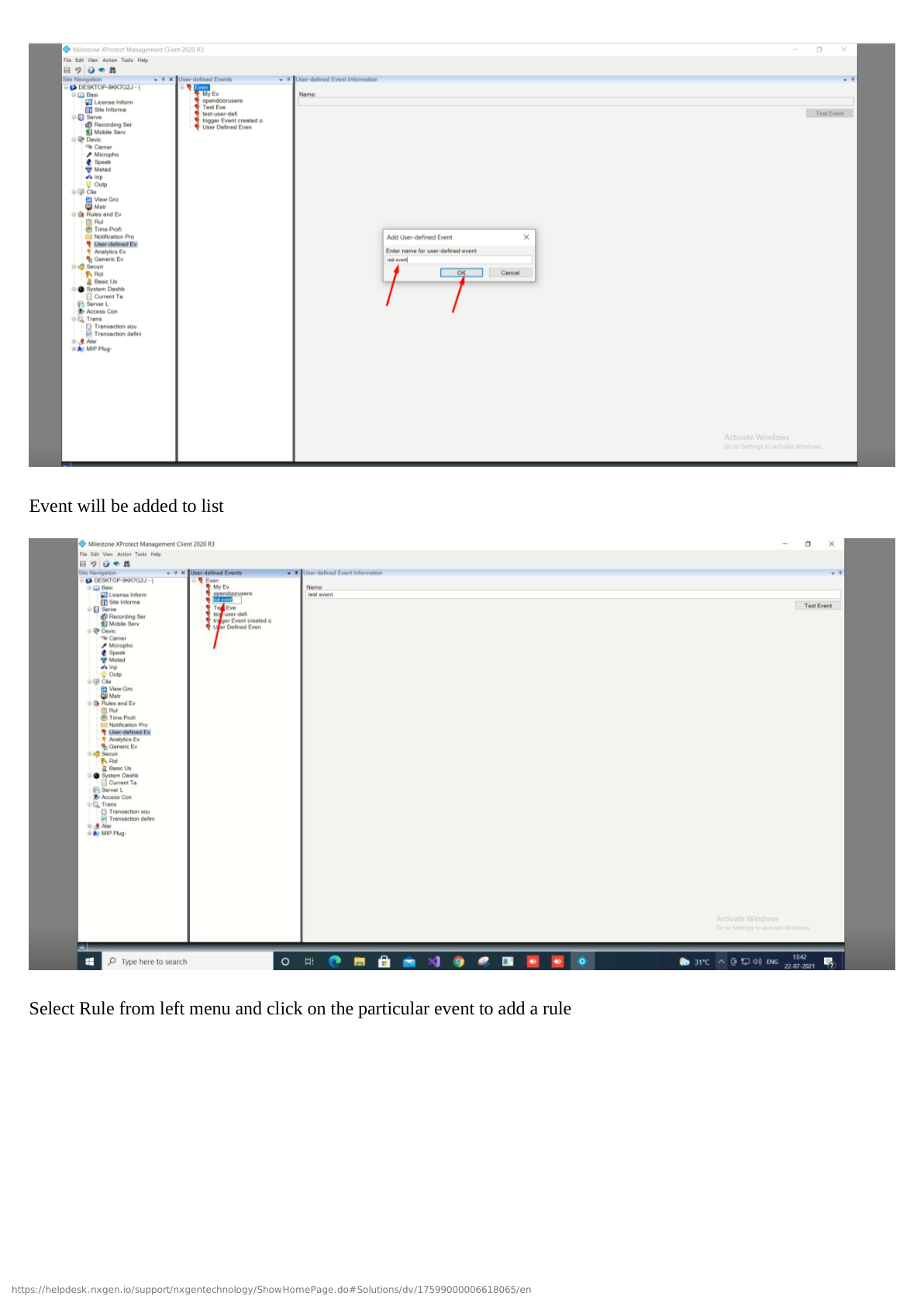
Expected Result: Alarm actions configured.
Step 11: Configure Automation Rules
Objective: Create automation workflows.
- Navigate to Rules and Events → Rules
- Click Add Rule
- Configure event, condition, action
- Enable and test rule
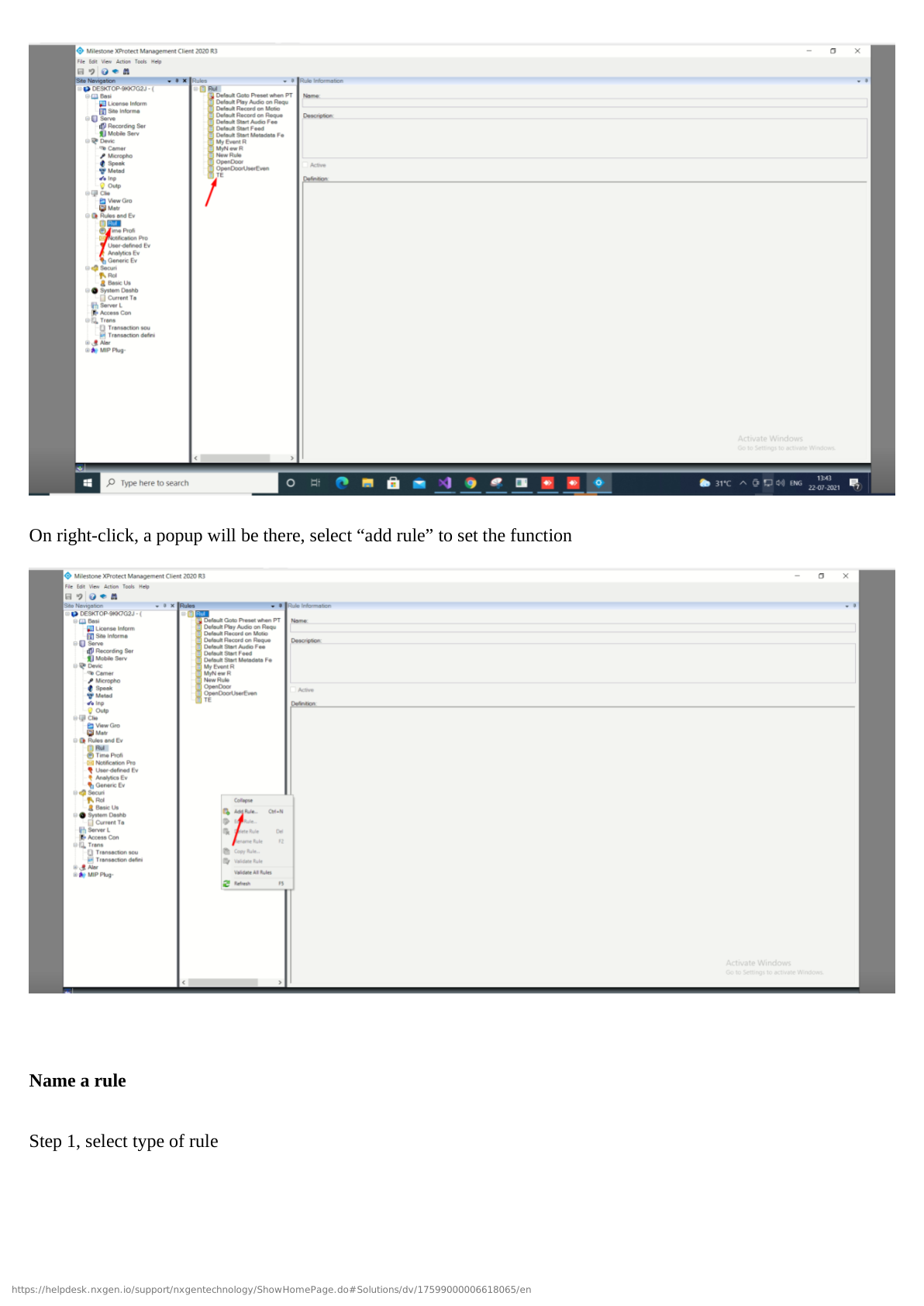
Expected Result: Rules configured for automation.
Part 3: GCXONE Platform Integration
Step 12: Add Milestone in GCXONE
Objective: Register Milestone in GCXONE.
- Log into GCXONE web portal
- Navigate to Devices → Add Device
- Select Milestone VMS
- Enter details:
- Device name
- IP address
- Port 8081
- Username/password
- Test connection and add

Expected Result: Milestone added, status "Online".
Step 13: Configure Camera Mappings
Objective: Map cameras to GCXONE.
- Navigate to Milestone device in GCXONE
- Click Configure Cameras
- For each camera:
- Assign to site/location
- Enable cloud streaming
- Enable event forwarding
- Enable timeline
- Save configuration
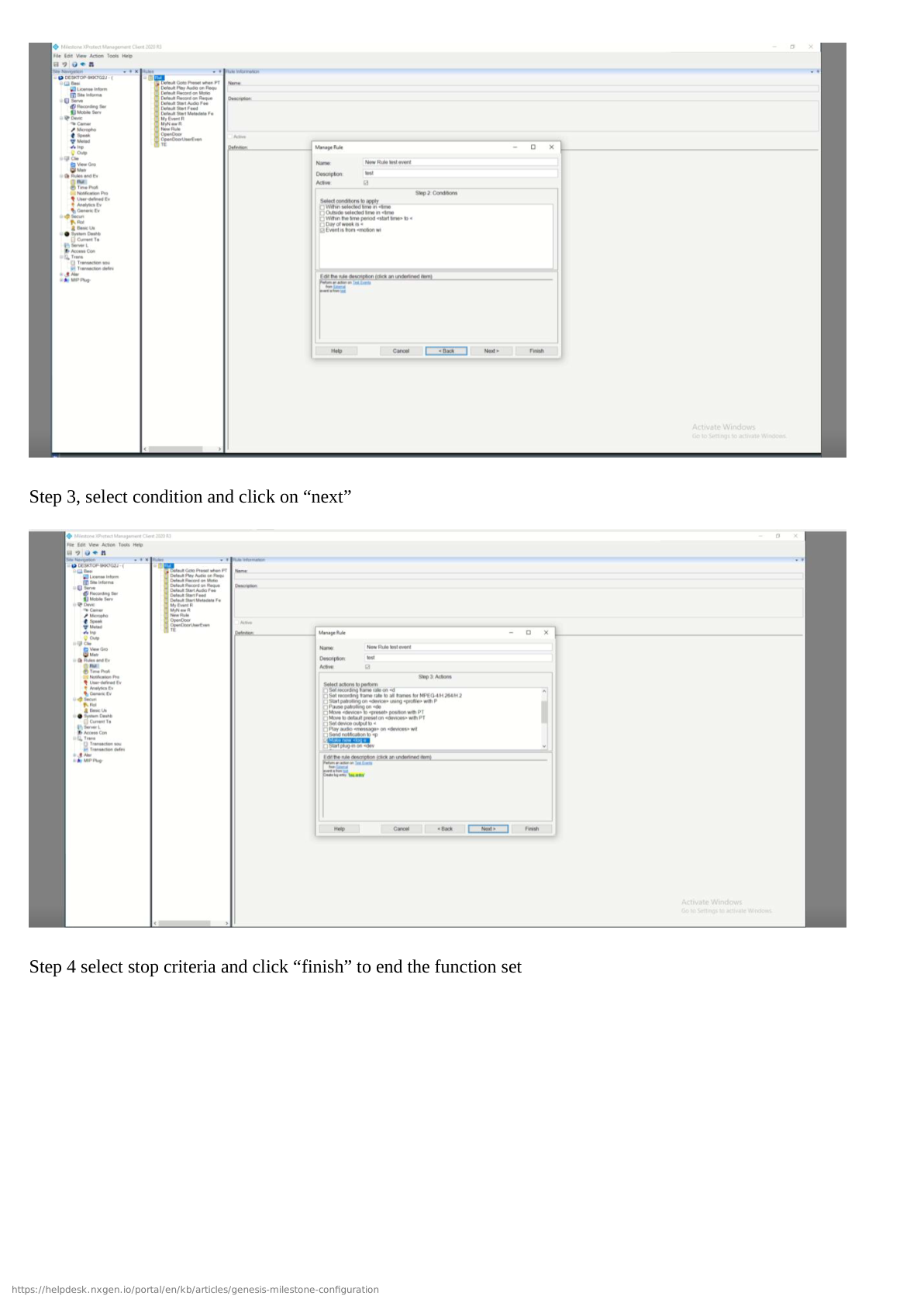
Expected Result: Cameras mapped and accessible.
Step 14: Configure Events and Notifications
Objective: Set up event forwarding.
- Navigate to Event Configuration
- Enable forwarding:
- Motion detection
- Alarms
- Analytics
- System events
- Configure notifications
- Set event actions
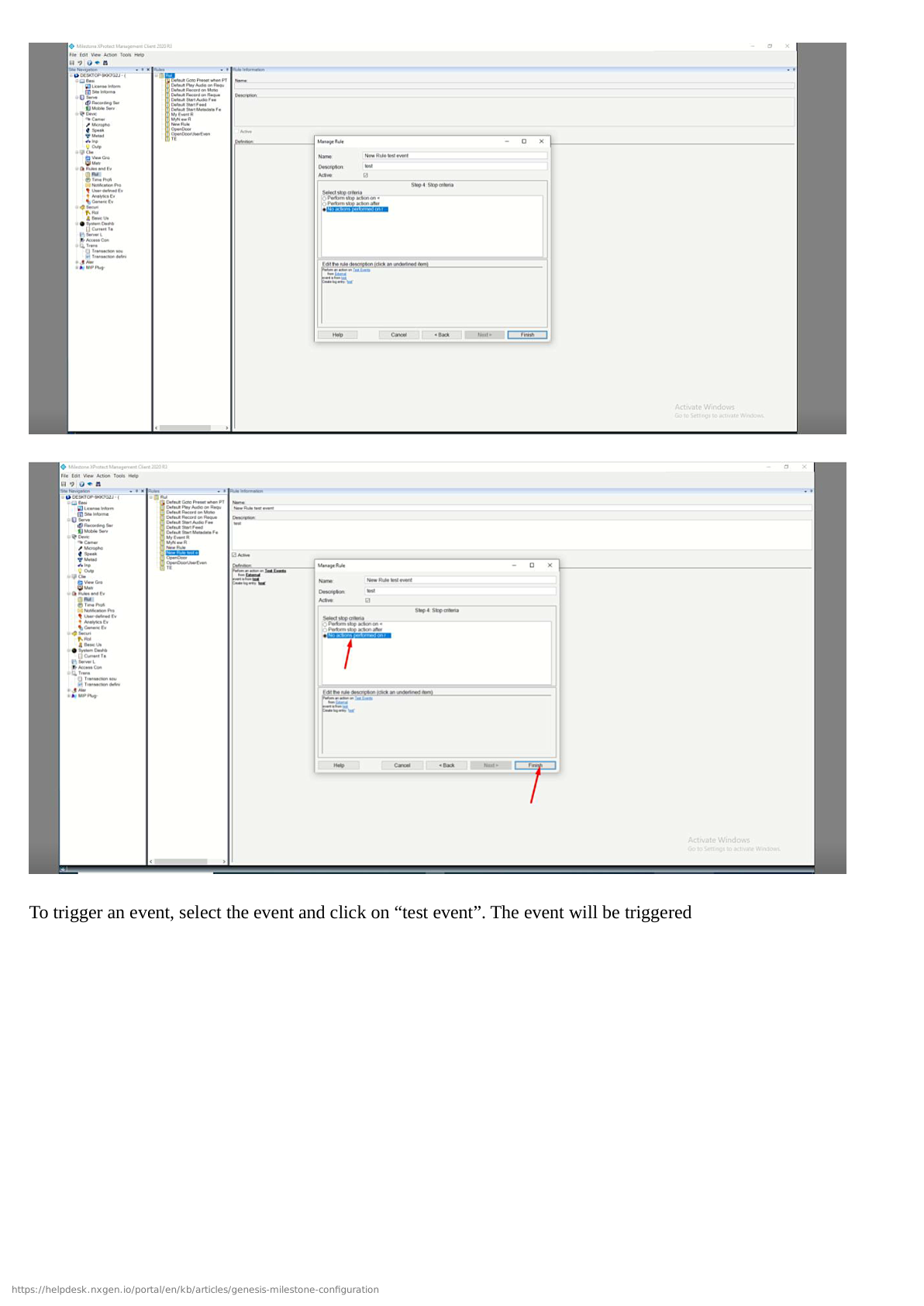
Expected Result: Events forwarded with notifications.
Step 15: Configure PTZ and Advanced Features
Objective: Enable advanced features.
- Configure PTZ presets in Milestone
- Verify PTZ controls in GCXONE
- Configure PTZ tours
- Enable Genesis Audio if needed
- Test bookmarks and timeline
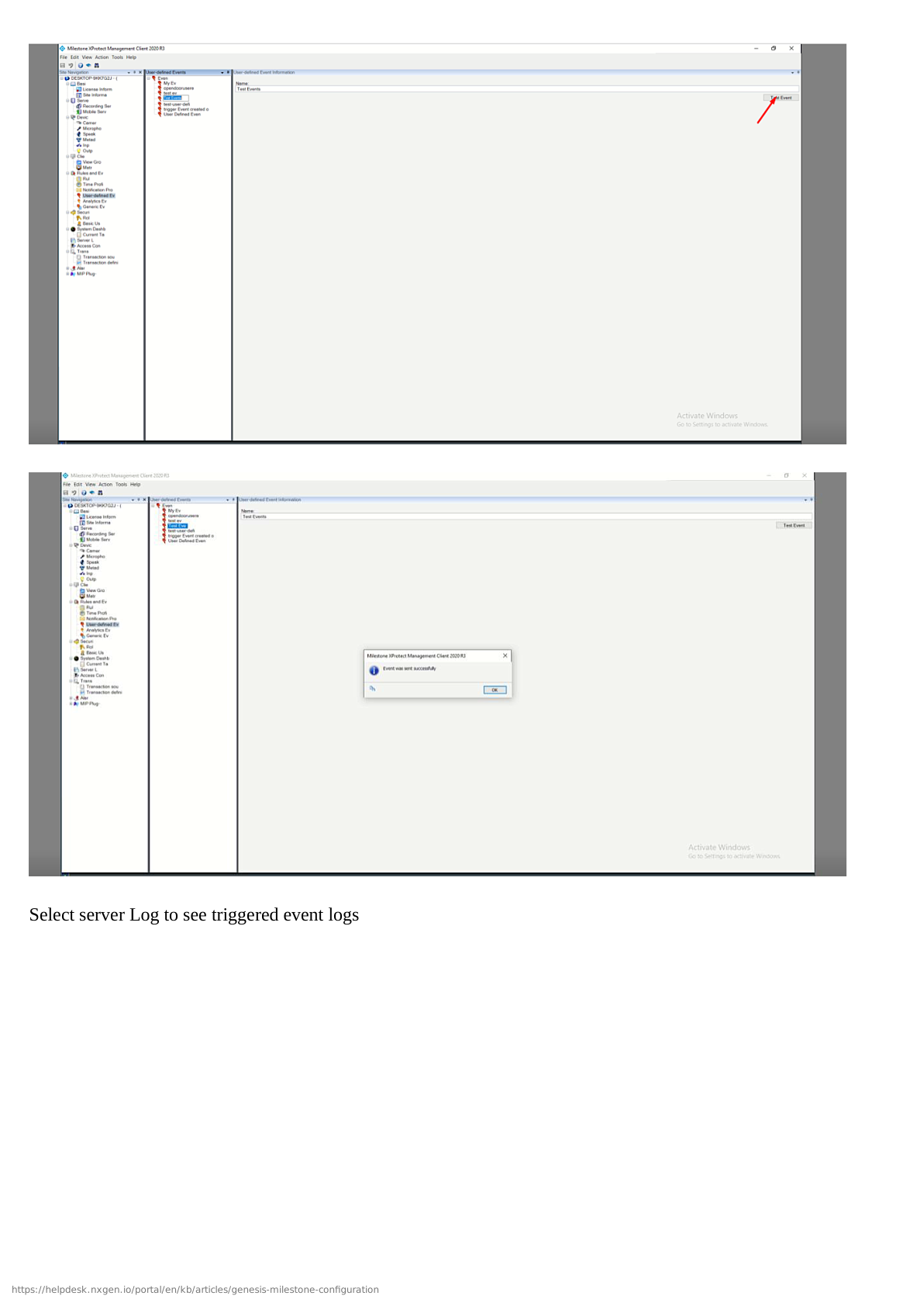
Expected Result: Advanced features functional.
Verification Checklist
- Cloud streaming works
- Playback functional
- Timeline shows events
- Alarms trigger correctly
- Notifications sent
- PTZ controls work
- Mobile app access works
- Device status "Online"
Advanced Configuration
Multi-Server Setup
- Configure multiple Milestone servers
- Set up federation
- Add each server in GCXONE
High Availability
- Configure failover server
- Set up database mirroring
- Test failover scenarios
Analytics Integration
- Add analytics plugins
- Configure analytics rules
- Forward events to GCXONE
Troubleshooting
Mobile Server not accessible:
- Check port 8081 open in firewall
- Verify service running
- Test external connectivity
Connection fails:
- Verify IP and credentials
- Check Mobile Server enabled
- Review Milestone logs
No playback:
- Verify recording enabled
- Check storage space
- Confirm retention period
See Troubleshooting Guide for more.
Related Articles
Need Help?
Contact support for Milestone VMS assistance.